
-
One board for every open job
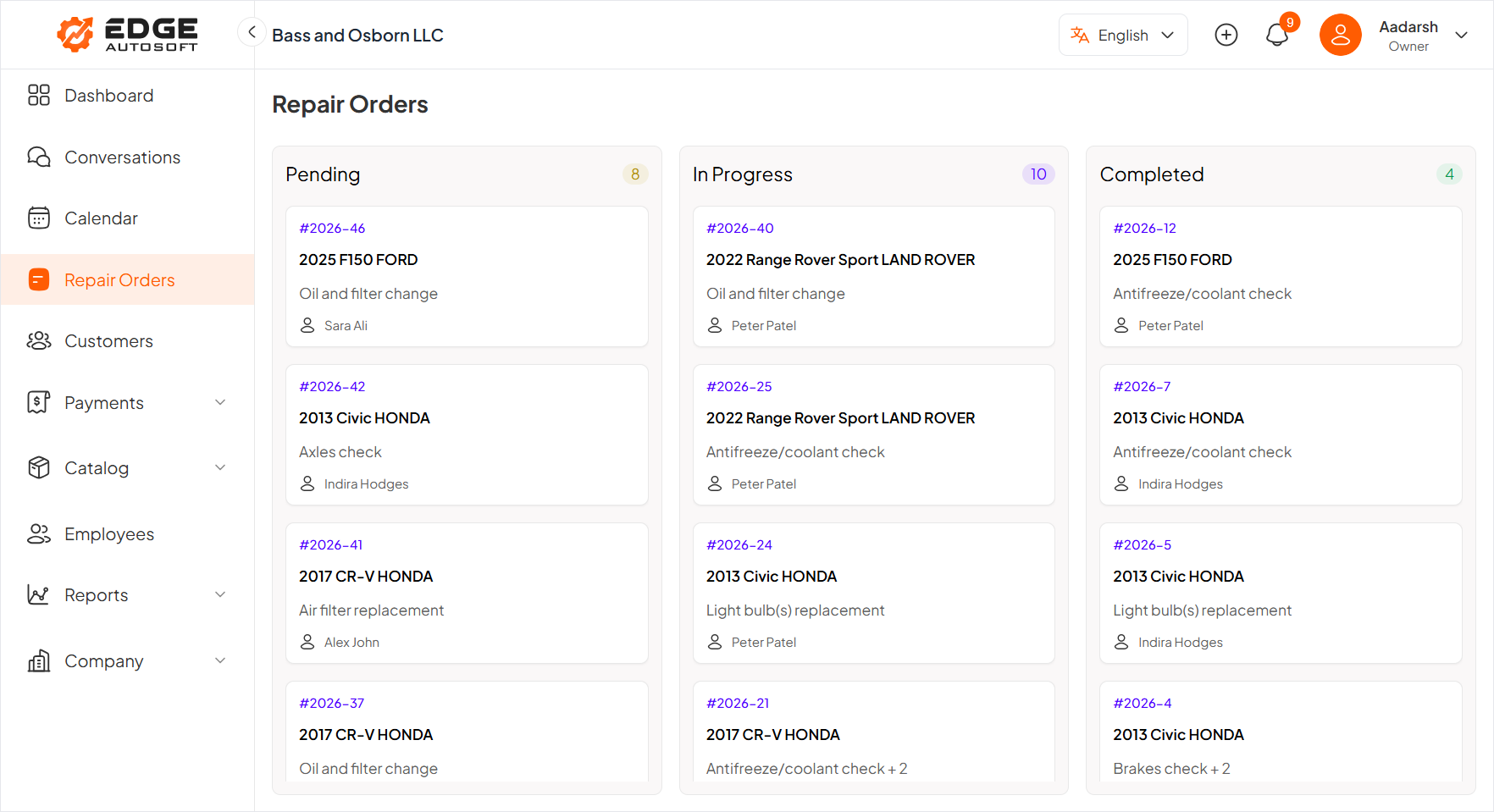
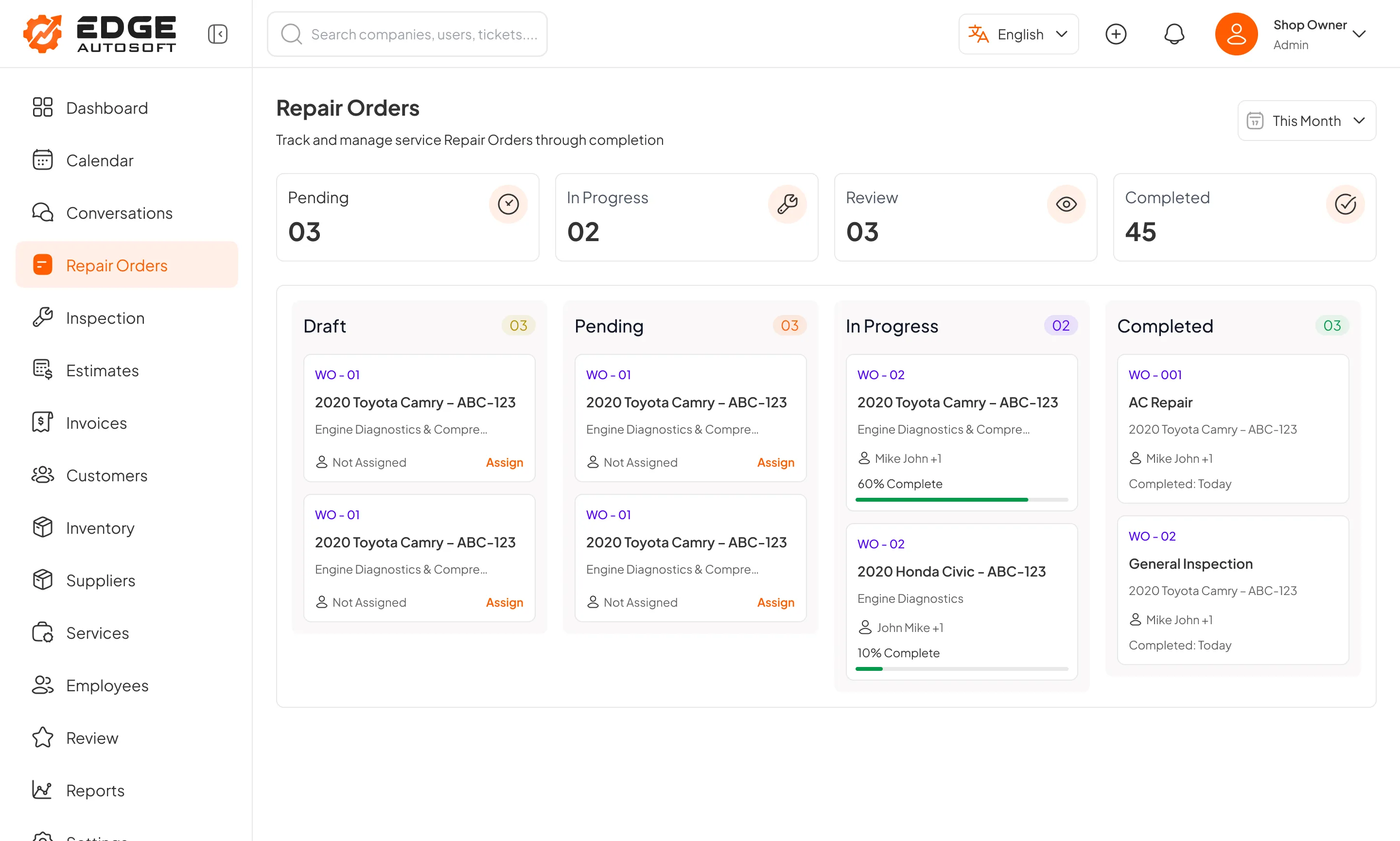
The Repair Orders screen opens with four counts across the top: Pending, In Progress, Review and Completed. Below them, every work order sits in a column for its current stage, from Draft through Pending and In Progress to Completed.
Each card shows the work order number, the vehicle, the services on the order, who it is assigned to and, once work starts, a progress bar. Unassigned orders carry an Assign link right on the card, so nothing sits in Pending because nobody picked it up. A period filter switches the board between this month and other ranges.
-
Assign the right technician
The Assign Technician panel lists your technicians with their current availability, such as Available, Busy until 2 PM or On Leave, and a search box for larger teams. More than one technician can be on a job, and the board card shows that at a glance. Assigned work then appears in the technician's own job list on the mobile technician interface.

Product screen · sample data -
See the detail behind each order
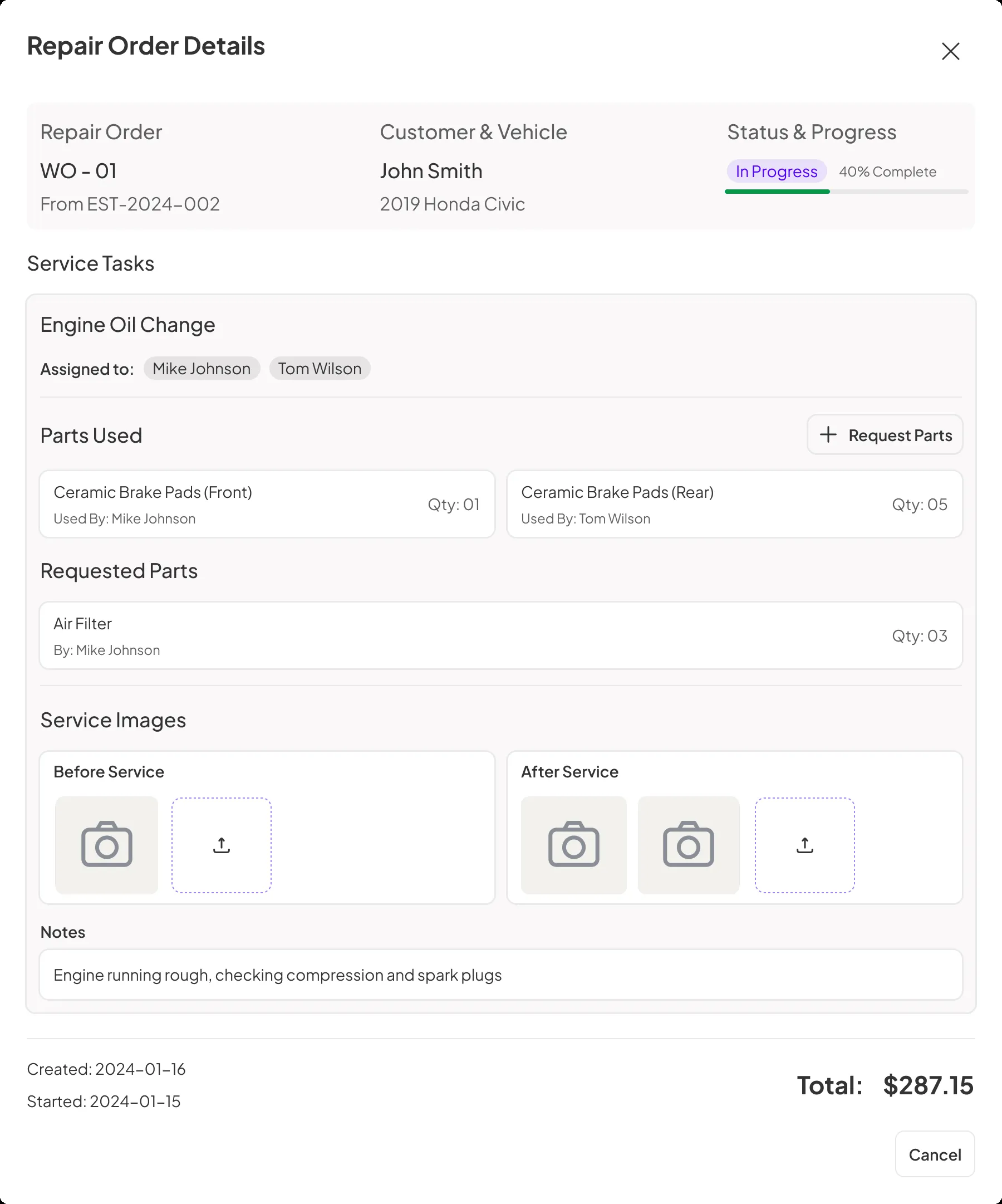
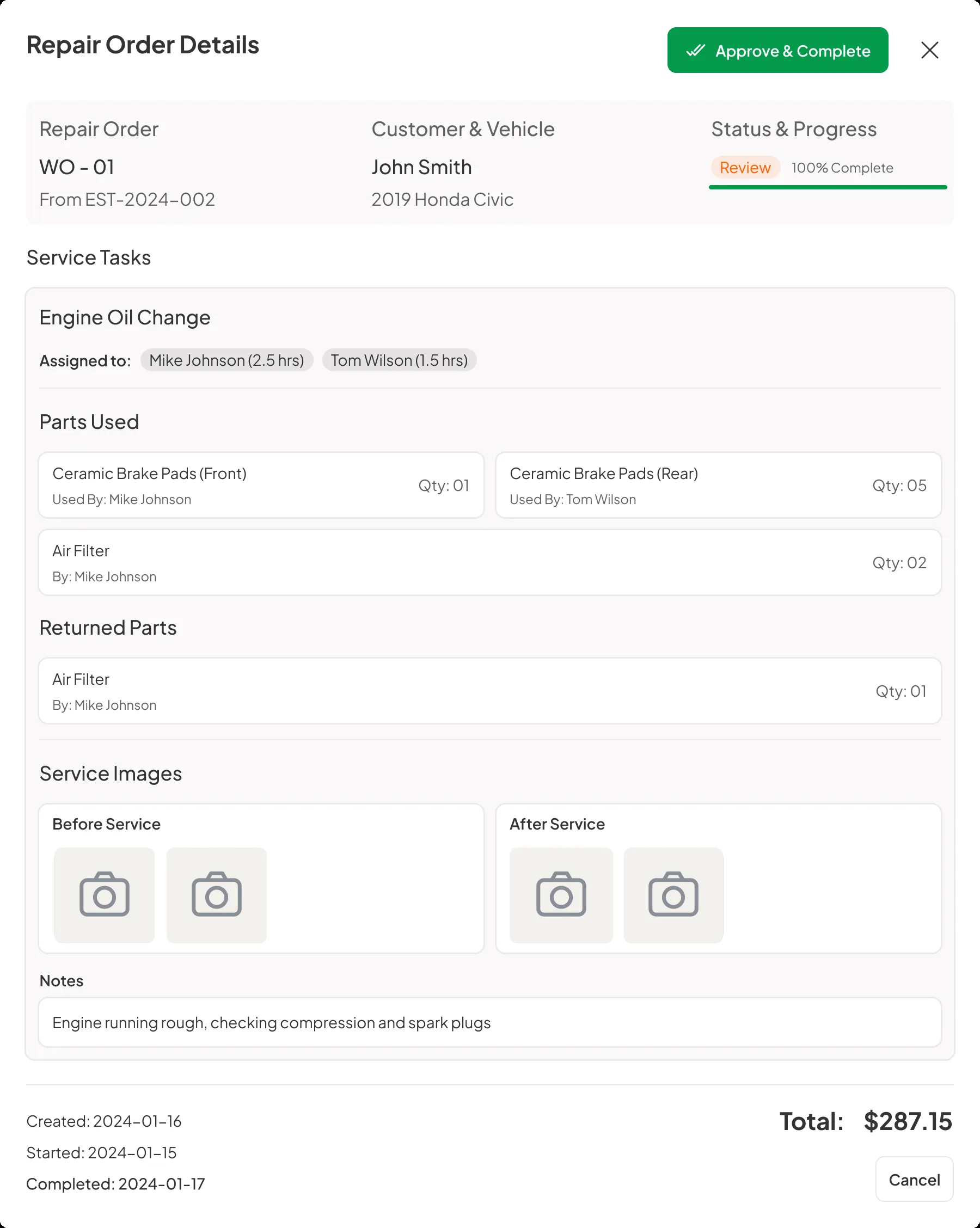
Opening an order shows the Repair Order Details view: the estimate it came from, the customer and vehicle, status with a progress bar, and each service task with the technicians assigned to it.
- Parts used and requested: parts on the job show who used them, and technicians can request more parts from the same view
- Before and after images: photos attached to the service, kept with the order
- Notes and total: technician notes and the order total in one place
The design also includes views for orders under review and completed, so an advisor can check finished work before it moves to invoicing.
Repair order detail views
-
In progress -
Review -

Completed
-
Services and parts you set up once
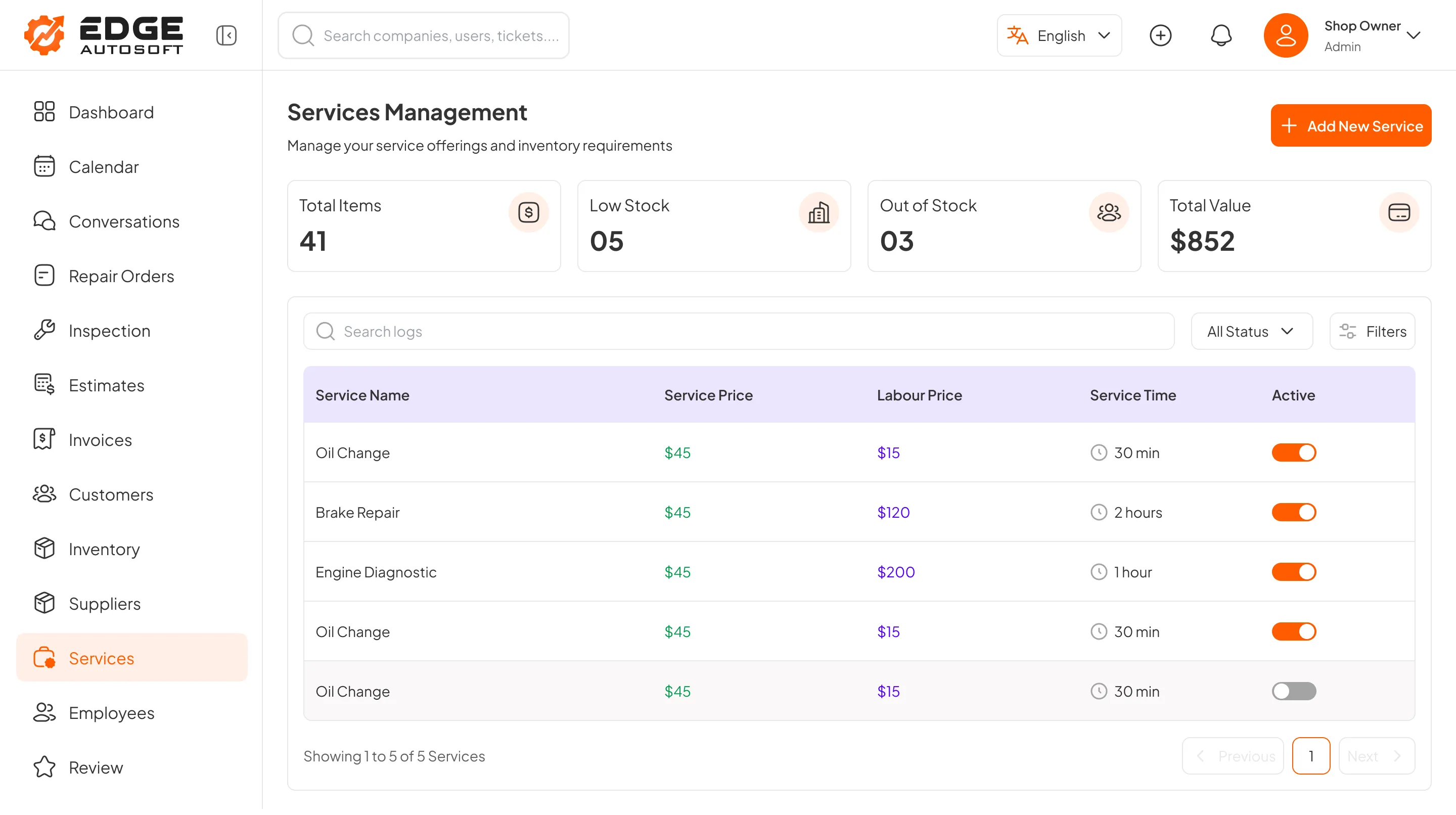
Orders draw on a service catalog the shop maintains in EDGE. The Services Management screen lists each service with its service price, labor price and expected service time, and any service can be switched on or off. Inventory parts can be assigned to services in set quantities, so stock is tied to the work it supports. Parts ordering sits on its own tab next to the estimate details.
Product screen · sample data
Repair orders: interactive preview
EDGE Repair Orders Order board

Repair Orders · Order board
Every work order sits in a column for its stage: Draft, Pending, In Progress and Completed.
Repair ordersInteractive product preview · sample data
Product preview built from EDGE AutoSoft interface designs; names, vehicles and amounts are sample data. In the preview, use the left and right arrow keys to move between steps, or activate a highlighted hotspot.
-
Repair Orders Every work order sits in a column for its stage: Draft, Pending, In Progress and Completed. Repair orders
Interactive product preview · sample data


